
Athlete User Guide
A tour of the Coach Watts athlete experience—from Dashboard and Chat to plans, libraries, analytics, and settings.
This guide is a map of the athlete product. Use it after Getting Started to learn where each job lives, then follow the linked deep guides when you need detail.
Daily home base
| Area | Open | Use it to |
|---|---|---|
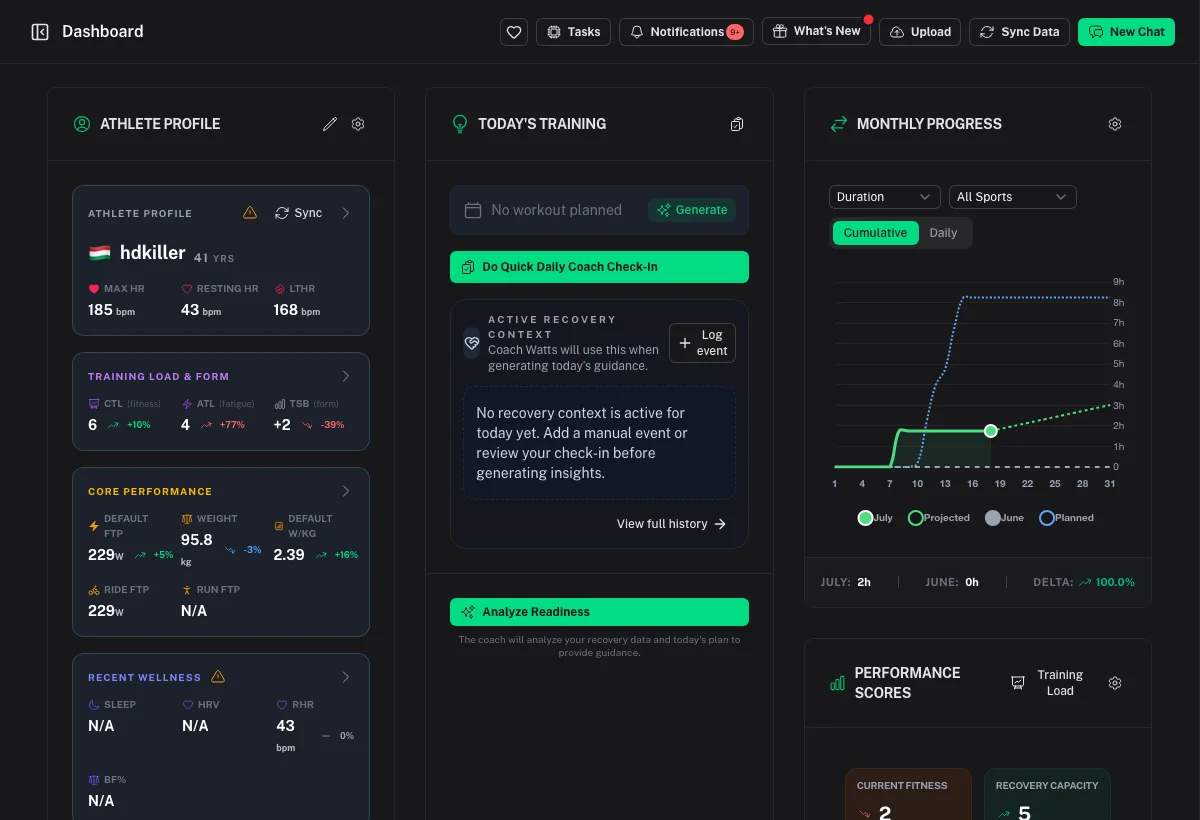
| Dashboard | Dashboard | Morning check-in, wellness snapshot, training load, sync, and upload |
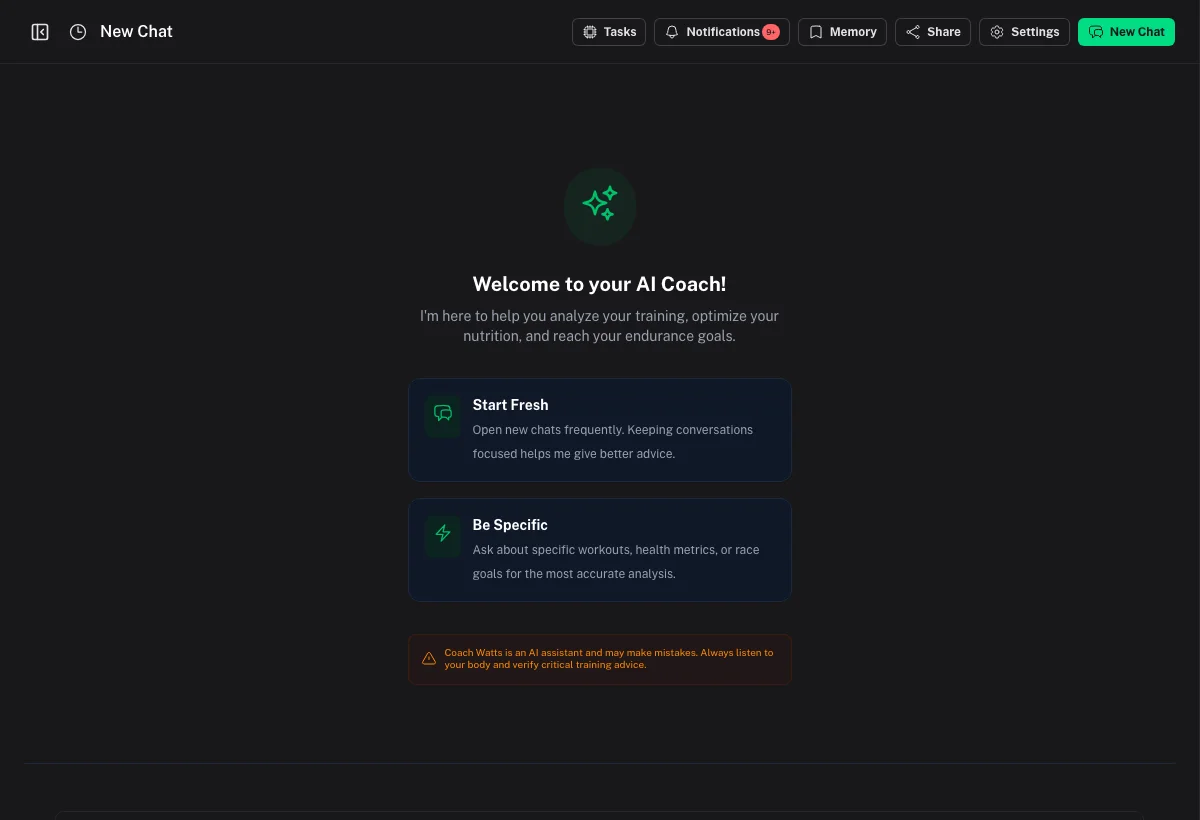
| Chat | AI Chat | Ask questions, adjust plans, analyze sessions, and run approved tools |
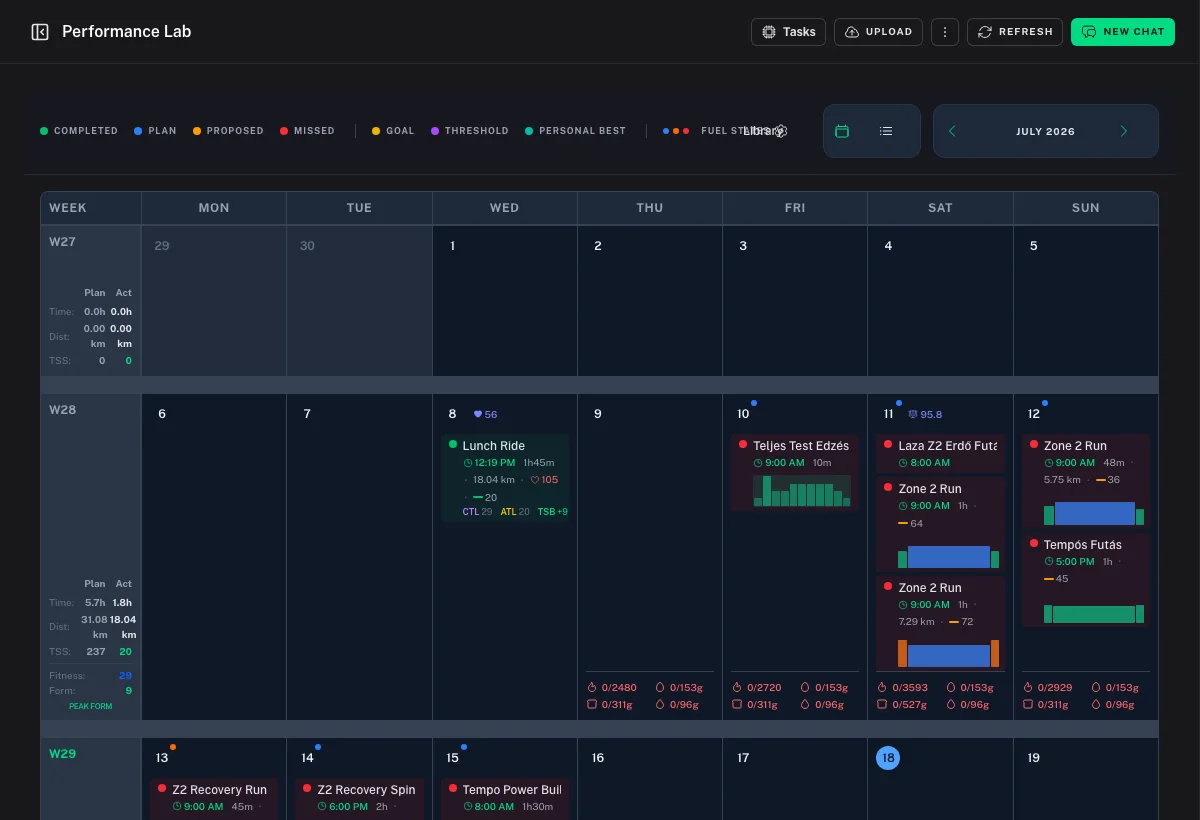
| Activities | Activities | Calendar and list of planned and completed workouts |
| Training Plan | Training Plan | Active periodized plan, blocks, and adaptations |
Start most days on the Dashboard, complete check-in when prompted, then open Chat or Activities for the session ahead. See Dashboard & Daily Flow and AI Chat & Supported Tools.
Plan and complete training
- Build or apply a plan — Training Plan or Library → Plans. See Training Plans.
- Schedule sessions — from Activities calendar (workout drawer) or by applying library templates. See Activity Calendar & Workout Management.
- Train — complete outdoors, indoors, or in a connected strength app.
- Sync or upload — Dashboard Sync, connected apps, or
.fitupload. - Match and review — link completed work to planned sessions; open the workout detail for scores, intervals, strength sets, and sharing. See Activities & Workout Analysis and Workout Detail Guide.
For gym work, see Strength Training. For duplicates across Garmin and Strava, see Duplicate Workouts & Versions.
Libraries
Library holds reusable content separate from dated calendar items:
- Workouts — endurance and gym templates
- Exercises — strength building blocks
- Plans — multi-week blueprints
- Charts — saved analytics views
See Workout, Exercise & Plan Libraries.
Performance, recovery, and nutrition
| Goal | Where to go |
|---|---|
| Fitness, fatigue, Form, bests | Performance — Performance & Trends |
| Custom charts / compare | Library → Charts or Analytics tools — Analytics Explorer |
| Sleep, HRV, readiness | Dashboard wellness + Recovery & Wellness |
| Fueling and meals | Nutrition (when enabled) — Nutrition |
| Weekly / monthly AI writeups | Reports — Reports |
| Race and goal anchors | Goals / Events — Goals & Events |
| Daily AI guidance | Recommendations — Daily Recommendations |
Connections and AI assistants
- Wearables and apps — Settings → Apps. Start with Integrations.
- External AI tools — MCP setup in Connect AI Assistants (MCP).
- Telegram — optional quick insights via the Telegram integration guide.
Working with a human coach
If you have a coach:
- Generate or accept a connection from Coaching → My Coaches (athlete side) using the flow your coach prefers.
- Your coach can view permitted training data and schedule work on your calendar.
- Revoke access anytime from your coaching connections.
Coaches do not need your password. See the coach docs on Connecting with Athletes if you are helping someone set up.
Settings checklist
Open Settings (and Profile → Settings) for:
| Section | Purpose |
|---|---|
| Basic profile | Name, timezone, units, language |
| Sport profiles | FTP, LTHR, pace/power/HR zones |
| Availability | Days and windows for plan generation |
| Nutrition | Fueling sensitivity and targets |
| AI Coach | Personality, tools, quotas |
| Apps | Connections, ingestion, source preference |
| Billing | Plan, portal, entitlements |
| Data / Danger | Export, category wipe, account deletion |
| Developer | API keys and OAuth apps |
Full index: Settings. Account help: Account & Billing.
Metrics in one sentence
Coach Watts combines classic load metrics (TSS, CTL, ATL, Form) with AI 1–10 scores on workouts, nutrition, and reports. Definitions live in the Glossary and Metrics & Scoring.
When you are stuck
- FAQ
- In-app Help Center (signed in)
- Discord community linked from the Help Center docs
- Ask Chat: "Help me create a support ticket"