
AI Chat & Supported Tools
Use Coach Watts Chat to inspect and change training data, analyze workouts, manage nutrition and recovery, work with memory, and control conversations safely.
Coach Watts Chat is a data-connected training workspace, not only a question-and-answer bot. It can read selected account data, run calculations, create charts, and perform supported changes through visible tool calls.
Open Chat from the main navigation. Use New Chat when you want a fresh conversation with a focused topic.
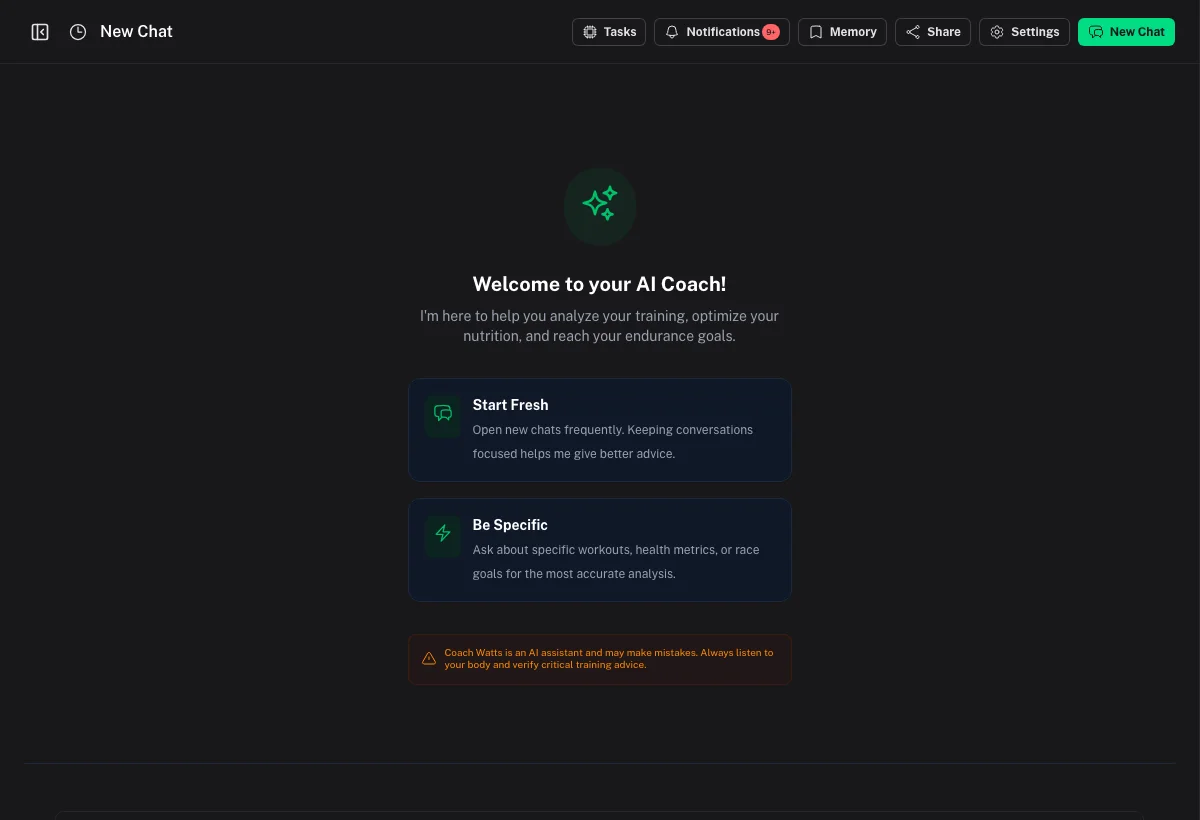
What makes Chat different
For each message, Coach Watts selects the smallest relevant set of capabilities. A question about yesterday's ride can use completed-workout tools, while “move Friday's intervals to Sunday” can use planning tools and date resolution.
You may see a tool card containing:
- the tool's readable name and status;
- the inputs Coach Watts used;
- a structured preview or result;
- an approval request when the action requires one;
- an error or cancellation state when the action did not complete.
A statement in normal chat text is not proof that data changed. A successful write should have a matching completed tool card and should appear in the relevant Coach Watts screen.
Supported capabilities at a glance
| Area | Chat can currently help with |
|---|---|
| Training schedule | Find planned workouts, inspect a plan, create or update sessions, move workouts, adjust difficulty, build workout structure, publish, and delete |
| Completed workouts | Find workouts, inspect details, analysis and streams, and update notes, tags, or supported metadata |
| Profile and zones | Read or update profile fields, sport settings, thresholds, and zones; regenerate the athlete profile |
| Availability | Read and update training time, day constraints, and gym availability |
| Recommendations | Generate a workout recommendation and inspect pending recommendation details |
| Recovery and wellness | Read recovery metrics and create, update, find, or delete wellness events |
| Analysis | Analyze or forecast training load, calculate training metrics, perform conversions, and create chat charts |
| Nutrition | Read logs, log food or water, correct or delete entries, and inspect fueling, metabolic, and meal recommendations |
| Memory | List, save, update, move, pin, or forget global and chat-specific memories |
| Support | Create a support ticket, open one of your tickets, and update a ticket |
Nutrition tools are only available when Enable Nutrition Analysis is turned on in AI Coach Settings.
Training schedule and plan tools
Chat can work with upcoming workouts and the current training plan.
Read and search
| Tool shown in Chat | Purpose |
|---|---|
get_planned_workouts | List planned workouts in a date range |
search_planned_workouts | Find planned workouts by title, description, or type |
get_current_plan | Load the current plan and its structure |
get_planned_workout_details | Inspect one planned session |
get_planned_workout_structure | Inspect its structured steps and targets |
get_training_availability | Read available training slots and constraints |
Create and change
| Tool shown in Chat | Purpose |
|---|---|
create_planned_workout | Add a planned workout to the calendar |
update_planned_workout | Change supported workout fields |
reschedule_planned_workout | Move a workout to another date or time |
adjust_planned_workout | Adjust a session for fatigue, time, or another constraint |
set_planned_workout_structure | Replace the structured steps |
patch_planned_workout_structure | Make targeted changes to existing steps |
generate_planned_workout_structure | Build structured intervals from the workout prescription |
publish_planned_workout | Publish a supported structured workout to an integration |
delete_planned_workout | Remove a planned workout |
update_training_week | Update supported week-level targets or focus |
modify_training_plan_structure | Change supported plan structure fields |
update_training_availability | Change availability or day constraints |
Use a precise request such as: “Move the threshold ride planned for Friday to Sunday morning, without changing its structure.” Chat will first identify the record when the target is not unambiguous.
Completed workout tools
| Tool shown in Chat | Purpose |
|---|---|
get_recent_workouts | List recent completed activities |
search_workouts | Find a completed workout by date, title, sport, or description |
get_workout_details | Load summary metrics and workout metadata |
get_workout_analysis | Load saved performance analysis and scores |
get_workout_streams | Inspect available time-series data |
update_workout | Edit supported completed-workout fields |
update_workout_notes | Append or replace personal notes |
update_workout_tags | Add, replace, or remove local tags |
create_chart | Render a useful chart in the conversation |
Manual workout creation, workout merging, duplicate resolution, version promotion, and deep re-analysis are currently handled in the dedicated Activity Management and Workout Detail screens.
Profile, sport, and availability tools
| Tool shown in Chat | Purpose |
|---|---|
get_user_profile | Read profile data such as FTP, heart rate, weight, age, units, or location |
update_user_profile | Update supported profile fields |
generate_athlete_profile | Recalculate the generated athlete profile |
get_sport_settings | Inspect sport profiles, activity matching, thresholds, and zones |
update_sport_settings | Update supported sport-profile fields |
get_training_availability | Read training windows and constraints |
update_training_availability | Change availability, gym access, or day constraints |
For complicated zone edits, review the result in Sport Profiles, Thresholds & Zones.
Recommendations, wellness, and analysis tools
Recommendations
recommend_workoutgenerates a data-grounded workout recommendation.get_recommendation_detailsopens a specific recommendation.list_pending_recommendationslists current pending recommendations.
Accepting or dismissing a recommendation is currently done from the recommendation interface rather than Chat.
Recovery and wellness
get_wellness_metricsreads recovery, sleep, HRV, resting heart rate, fatigue, and related metrics.record_wellness_eventlogs a symptom, illness, soreness, stressor, or other wellness event.get_wellness_eventsfinds saved events.update_wellness_eventchanges an event.delete_wellness_eventremoves an event.
Analysis and calculations
analyze_training_loadsummarizes load over a selected period.forecast_training_loadprojects load from upcoming work.calculate_training_metricscalculates supported zones, pace, load, or related metrics.perform_calculationhandles explicit arithmetic and unit conversions.create_chartdisplays a useful visualization inside Chat.
Formal weekly or monthly report generation remains in Reports. Provider refresh and sync controls remain in Connected Apps & Sync Settings.
Nutrition tools
When nutrition analysis is enabled, Chat can use:
| Tool shown in Chat | Purpose |
|---|---|
get_nutrition_log | Read meals, items, macros, and hydration for a date |
log_nutrition_meal | Log a meal from a natural-language description |
log_hydration_intake | Add water or another hydration amount |
patch_nutrition_items | Correct portions, nutrition values, timing, or other supported item fields |
delete_nutrition_item | Remove a logged item |
delete_hydration | Remove a hydration entry or date amount |
get_fueling_recommendations | Read the calculated fueling plan for a date |
get_metabolic_strategy | Inspect the current metabolic strategy |
get_daily_fueling_status | Compare intake with the day's fueling targets |
get_meal_recommendations | Get meal ideas grounded in the current day |
lock_meal_to_plan | Lock a logged meal into the supported plan workflow |
Chat resolves relative references such as “yesterday” and reads the source day before copying requests like “Log the same breakfast as last Friday, but half the portion.”
Creating a full nutrition plan, swapping planned meals, completing planned meals, and grocery-list export currently belong to the dedicated Nutrition interface.
Memory tools and controls
Memory is optional. Open Memory in the Chat header to turn it on and manage exactly what is saved.
- Global memory can be used across your chats.
- Room memory only applies to the current conversation.
- Pinned memories are prioritized.
- Sensitive memories remain easy to identify and can be hidden from the normal list.
- Use memory controls whether saved memory is included in Chat context.
You can manage memory from the panel or say:
- “Remember across chats that I prefer morning workouts.”
- “Remember only in this chat that we are reviewing my spring race block.”
- “What do you remember about my schedule?”
- “Forget the note about my knee.”
The corresponding tools are list_memories, remember_memory, update_memory, and forget_memory. A room summary created by Summarize & Optimize is conversation compression, not the same thing as a saved memory.
Support tools
Chat can currently:
- use
ticket_createto create a support ticket; - use
ticket_getto open one of your tickets; - use
ticket_updateto update supported ticket fields.
Ticket search, comments, and the dedicated bug-report tools are not currently available in Chat. Use the Help Center for full ticket management.
Dates, time, and helper tools
Chat may call get_current_time before logging something “now,” and resolve_temporal_reference before changing data for “tomorrow,” “last Friday,” or similar phrases. These helpers use your configured timezone.
If a date matters, include both the day and intent: “Move tomorrow's run to Wednesday, July 15, in my timezone.” Review your timezone in Basic Profile & Localization if Chat resolves dates unexpectedly.
Tool approval and safe changes
Open Chat → Settings or Settings → AI Coach and enable Require Tool Approval when you want supported data-changing tools to pause for review.
When approval is required:
- Chat prepares the real tool call.
- An approval card shows the proposed action.
- Select the confirm action to run it, or cancel and explain what should change.
- Chat continues the turn and reports the result.
Typing “yes” is not a substitute for the approval card. If you answer with new text instead, the prepared action can be cancelled and may need to be created again.
Read-only tools do not need approval. Not every change supports an approval pause, so always review important results in the underlying calendar, workout, profile, wellness, or nutrition screen.
Photos, videos, and voice
Use the attachment button to add images or videos. Chat supports up to four supported files from one selection.
- On desktop, take a webcam photo, record a short webcam video, or choose files.
- On mobile, use the camera, record video, or choose files.
- Pasted clipboard images are uploaded as attachments.
- Large or unusual images may be resized and converted before upload.
- Other document types are not currently accepted; Chat attachments are image or video only.
The microphone button records a voice note and converts it to text. The audio itself is not sent as a lasting chat attachment. Check the transcript before sending when dates, amounts, zones, or workout names matter.
Read responses aloud
Use the speaker action on an assistant message to hear it. Voice settings support a voice, style, and slow, normal, or fast playback. Auto-read can start playback when a new assistant response finishes.
Open Chat → Settings → Configure Voice to change the defaults. Browser audio permissions and device output still control playback.
Conversations, background work, and recovery
Chat conversations persist in Chat History. A room menu can:
- rename the chat or generate an AI name;
- Summarize & Optimize long history;
- create a read-only share link;
- copy the room ID for support;
- report an issue;
- delete the room.
Tool-based turns run durably in the background. If you send another message while a turn is active, the composer can queue it for the room. An interrupted turn shows Resume; a failed turn shows Retry. Complex operations may finish after you navigate elsewhere, with status updates delivered when available.
Older legacy chats can be read-only. Start a new chat to continue with the current tool system.
Sharing a chat safely
Select Share and choose the link expiry. Anyone with the link can open a read-only copy of that chat.
Shared chat output is sanitized to conversation text. Internal tool messages, tool payloads, saved memory controls, and uploaded attachment files are not included in the public response. Even so, read the visible conversation before sharing because your own messages and the assistant's text may contain private health or training information.
Delete or let the share link expire when it is no longer needed.
Write requests that work well
Use four ingredients when asking Chat to take action:
- Target — the exact workout, date, meal, profile, or metric.
- Action — inspect, compare, create, move, update, log, or delete.
- Constraints — available time, intensity, sport, injury, equipment, or units.
- Expected result — what should stay unchanged and where you will verify it.
Examples:
- “Find my completed threshold ride from Sunday and compare its power variability with the previous threshold ride.”
- “Create a 60-minute endurance ride next Tuesday with power targets based on my cycling FTP.”
- “I only have 40 minutes tomorrow. Shorten the planned run without changing its main intensity.”
- “Log 750 ml of water now and show today's hydration total.”
- “Add ‘left calf tight after 30 minutes’ to yesterday's run notes.”
- “Show my seven-day recovery trend and create a chart only if it helps explain the change.”
Important limitations
- Chat may make mistakes; verify critical dates, zones, loads, nutrition amounts, and destructive actions.
- Chat is not medical care. Stop training and seek qualified help for urgent or concerning symptoms.
- Chat cannot merge workouts, resolve duplicates, manage workout versions, or perform every action available elsewhere in Coach Watts.
- Chat does not send a direct message to a coach or athlete.
- Tool availability can depend on account settings, data access, subscription entitlements, connected integrations, and whether a matching record exists.