
Account & Billing
Manage your Coach Watts subscription, payment method, entitlements, AI quotas, and account closure.
This page covers subscription management for athletes and coaches. Platform billing uses the same Settings → Billing surface for both roles when payments are enabled for the deployment.
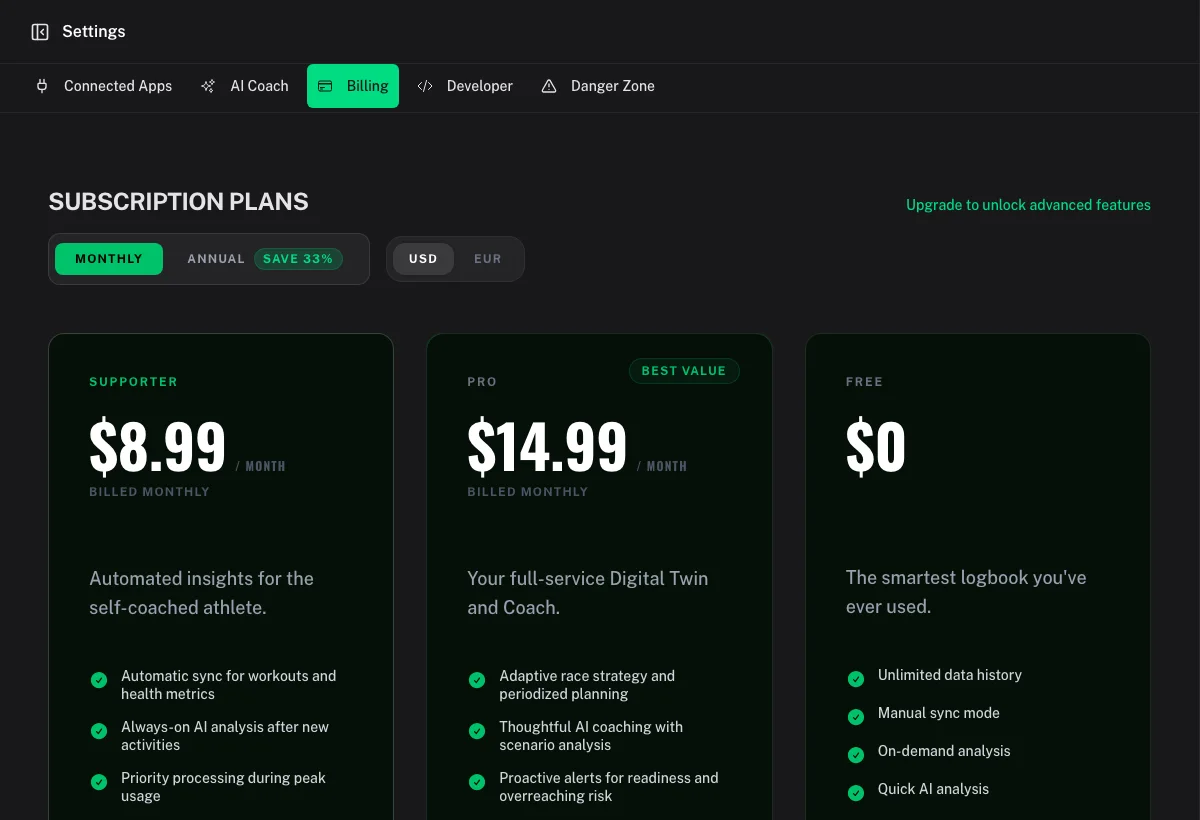
Plans
Coach Watts offers three tiers:
| Plan | Best for | Highlights |
|---|---|---|
| Free | Getting started and manual workflows | Manual sync, on-demand analysis, limited AI usage |
| Supporter | Self-coached athletes who want automation | Automatic sync, always-on analysis, higher AI quotas |
| Pro | Adaptive planning and proactive AI coaching | Deep AI engine, proactive insights, highest quotas |
Current list pricing appears on Settings → Billing and the public pricing page. Annual billing usually costs less than paying monthly.
Open Billing
- Go to Settings → Billing.
- Review your active plan, renewal date, and entitlement summary.
- Use the actions on that page to upgrade, change plan, open the payment portal, or sync status.
If Billing is missing from Settings, payments are not configured for this deployment (common in self-hosted setups). Feature access then follows the deployment defaults.
Upgrade or change plan
- Open Settings → Billing.
- Choose Free, Supporter, or Pro and a monthly or annual interval when offered.
- Complete checkout.
- Wait for Coach Watts to confirm activation before starting another checkout or refreshing repeatedly.
Paid subscribers can open the subscription portal (Manage / Manage via Stripe) to update the payment method, switch plans, download invoices, or cancel.
Complimentary or lifetime Pro access (for example, contributor accounts) appears on Billing with a special status. It does not require an active Stripe subscription, and Stripe sync will not overwrite it.
Cancel or stop renewal
- Open Settings → Billing.
- Select Manage to open the Stripe customer portal.
- Cancel auto-renewal or the subscription there.
Access typically continues through the end of the paid period shown on the Billing page. Canceling checkout before payment leaves your current plan unchanged.
Past-due payments
A past-due banner means the payment provider could not charge your method.
- Open the billing portal from Settings → Billing.
- Update the card or retry payment.
- Return to Coach Watts and wait for status to refresh (use Sync if shown).
Some features may stay restricted until the subscription returns to an active state.
Entitlements vs AI quotas
- Entitlements control capability (for example automatic sync, always-on analysis, proactive AI). See the Your Entitlements section on Billing.
- AI quotas limit how often you can run chat, analysis, plan generation, and related operations. Open Settings → AI Coach for remaining usage and reset windows.
Upgrading can raise quotas and unlock entitlements. It does not repair a failed provider import or missing workout file.
Account export and deletion
Billing cancellation does not delete your account.
- Export data — Settings → Danger Zone (also summarized in Data & Privacy)
- Delete account — Settings → Danger Zone (permanent)
Troubleshooting
I paid but still see Free
Wait a minute for webhook confirmation, then use Sync on Billing. Avoid opening multiple checkout sessions. If it stays wrong, open a ticket in the Help Center.
I canceled in the App Store / Play Store
Platform subscriptions purchased through an app store must be managed in that store's subscription settings. Use Settings → Billing for web/Stripe subscriptions.
Coaches and athlete fees
Coach Watts platform billing covers your Coach Watts subscription. Collecting coaching fees from athletes is handled outside Coach Watts (for example your own invoicing or the external CTA on a public Start page).