
Structured Workouts
Create structured workout templates, schedule them, export to devices, complete the session, and compare planned versus actual.
A structured workout is a planned session with intervals or strength blocks—not just a title and duration. This page covers the full lifecycle for endurance structures; for gym-specific blocks see Strength Training.
Lifecycle overview
- Create a template in Library → Workouts (or save from Chat / a completed session).
- Schedule it onto Activities (or let a plan / coach place it).
- Export to your device or virtual platform when needed.
- Complete the session outdoors or indoors.
- Sync, match to the plan, and compare adherence.
Create a template
From the library
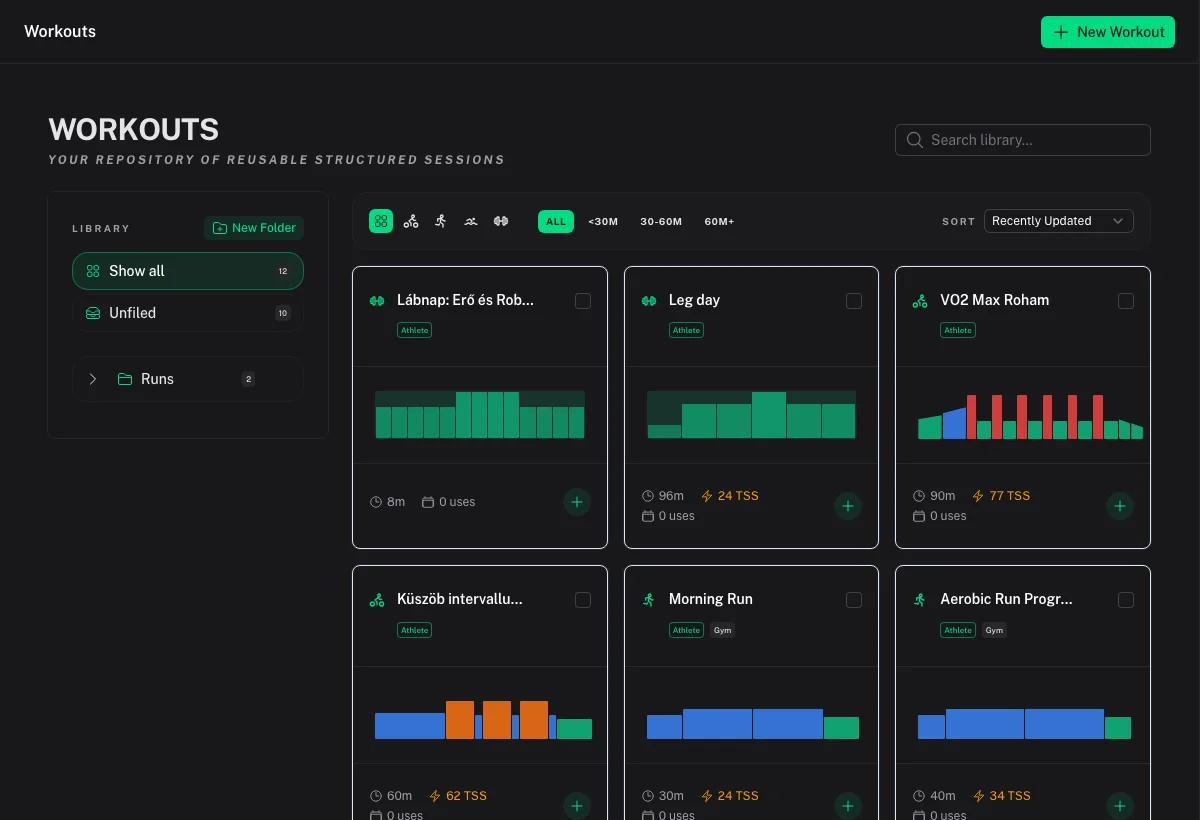
- Open Library → Workouts.
- Select New Workout and choose the sport (Ride, Run, Swim, Gym, and so on).
- Build intervals or strength blocks in the editor: targets (power, HR, pace), durations, repeats, and coach notes.
- Save and optionally file in a folder.
From Chat or AI generation
Ask Chat to generate a structured session, review the preview, and approve when prompted. Generation uses your sport profiles and quotas — see AI Chat & Supported Tools and AI Coach Settings.
From a completed workout
On a completed workout detail page, use Save to Library, then edit the template so it becomes a prescription rather than a recording of one day.
Schedule
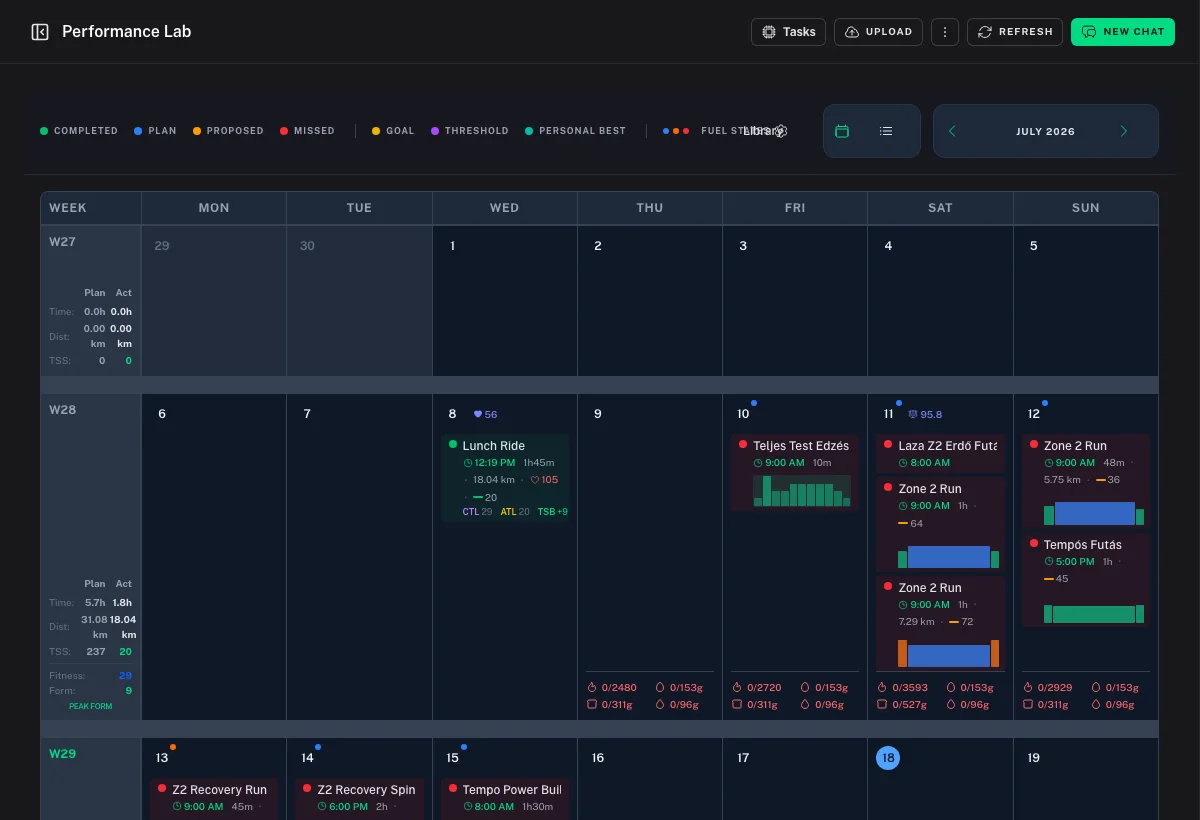
- Open Activities → calendar view.
- Open the workout drawer, pick the template, and place it on a date.
- Confirm Schedule Workout.
- Open the planned workout to verify zones and targets before training day.
Keep thresholds current under Settings → Sports so targets resolve correctly — Sport Profiles, Thresholds & Zones.
Export to devices and apps
On a planned workout, open Download Workout (wording may vary) when available:
| Format | Typical use |
|---|---|
Zwift (.zwo) | Import into Zwift workout library |
Garmin (.fit) | Load onto a Garmin device / Connect |
Some APIs also support additional trainer formats; the UI exposes the formats available for that workout. After exporting, follow the destination app's import steps.
Connected platforms such as ROUVY or Intervals.icu may also publish or sync structures when those integrations are enabled — see each integration guide.
Complete and sync
Train with the structure on your device or virtual platform, then:
- Let the activity sync from connected apps, or upload a
.fitfile from the Dashboard. - On Activities, match the completed file to the planned workout (drag or Link Workouts).
- Open the completed detail for AI analysis, plan adherence, intervals, and map.
If the same ride appears twice, resolve duplicates before trusting scores — Duplicate Workouts & Versions.
Compare planned vs completed
- Plan adherence on the completed workout shows how execution tracked the prescription. Regenerate after changing the link or structure.
- Workout Comparison — add multiple sessions and open comparison for metrics, intervals, or streams. See Analytics Explorer & Workout Comparison.
Troubleshooting
Targets look wrong on the device
Update FTP / pace / HR thresholds, re-open the planned workout, and export again. Percent-of-threshold steps follow your current sport profile.
Structure is empty or missing steps
Wait for background generation to finish (Chat or plan generation can run asynchronously). Open the planned workout and regenerate structure if the UI offers it. Confirm you are not looking at a description-only shell.
Completed file will not match
Check start time and sport, unlink a wrong match, then use Link Workouts. Very short or manually created activities may need a manual link.