
Strength Training
Build gym exercises and strength workouts, schedule them on your calendar, and bring completed sessions into Coach Watts.
Coach Watts treats strength work as first-class training load: reusable exercises, Gym workout templates with blocks and sets, scheduled planned sessions, and completed activities that can match those plans.
What you can do
| Step | Where |
|---|---|
| Define moves | Library → Exercises |
| Build a gym session | Library → Workouts → type Gym |
| Put it on the calendar | Activities → workout drawer → schedule template |
| Log the session | Prefer Hevy, or upload / manual activity |
| Review | Workout detail (strength exercises tab) + match to planned |
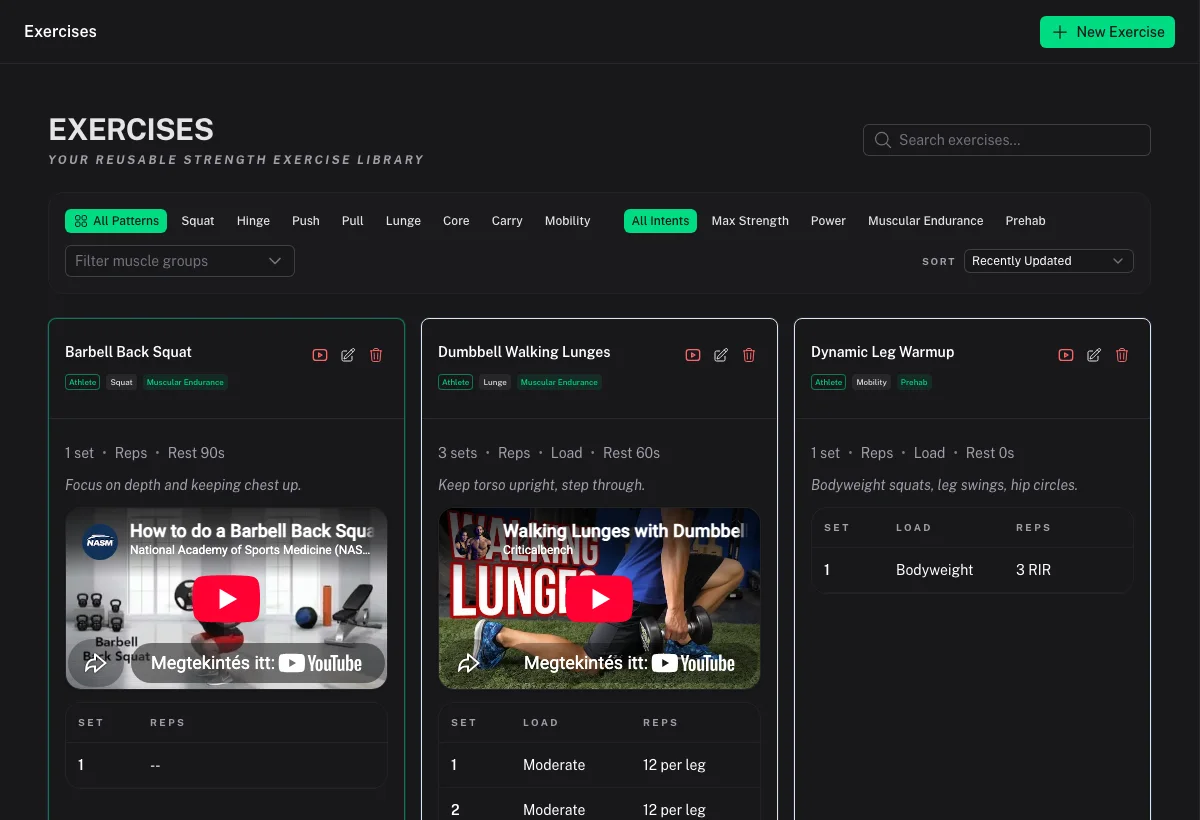
Create exercises
- Open Library → Exercises.
- Select New Exercise.
- Set title, movement pattern (for example squat, hinge, push, pull, lunge, core, carry, mobility), intent, muscle groups, and prescription defaults (reps, duration, load mode).
- Add optional instructions or video information.
- Save.
Use filters (pattern, intent, muscle groups) and search to find exercises when building sessions. Deleting an exercise does not rewrite historical completed workouts that already recorded it.
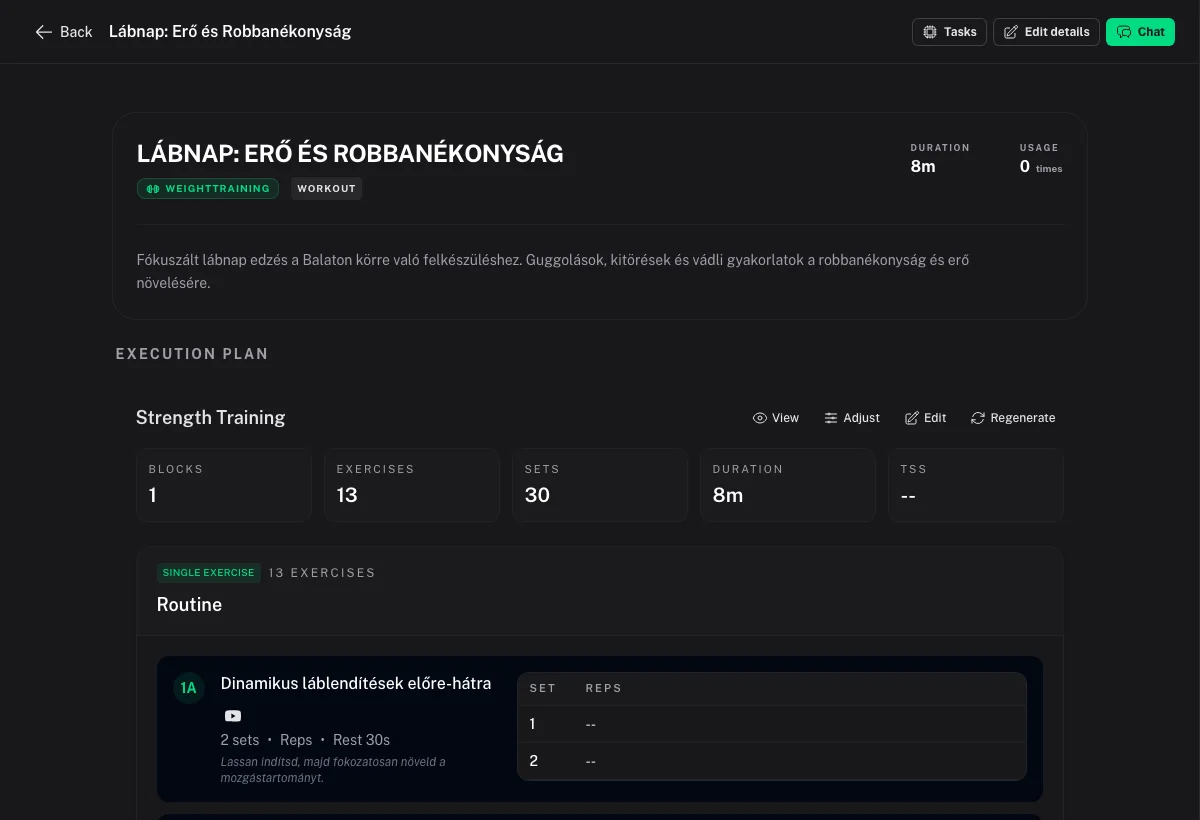
Build a strength workout template
- Open Library → Workouts.
- Create a New Workout with type Gym (weight training).
- Open the strength editor and add blocks such as warmup, single exercise, superset, circuit, or cooldown.
- Add Exercise from your library (or create inline), then configure set rows, rest, and load fields the editor supports.
- Optionally save an inline exercise back to the library.
- Set duration or TSS override when you want planned load to reflect the session.
Endurance structured workouts (power/HR/pace intervals) use a different builder — see your workout library and planned workout detail for those sports.
Schedule a session
- Open Activities in calendar view.
- Open the workout drawer and choose your Gym template.
- Place it on the target date and confirm Schedule Workout.
- Open the planned workout to verify targets before training day.
Coaches can also place templates on your calendar from Coaching → Calendar.
Scheduling is calendar-driven. Prefer the Activities (or coach calendar) drawers rather than expecting every library list button to place a session.
Log and complete strength work
Coach Watts does not currently provide a live “set logger” while you lift. Practical paths:
- Hevy (recommended) — Connect Settings → Apps → Hevy, complete the session in Hevy, then sync. Strength volume feeds fatigue and recovery context. See Hevy Integration.
.fitupload — Dashboard Upload or Workouts → Upload when you have a file.- Manual activity — Create or edit an activity with a strength/gym type when you only need a calendar placeholder.
After a completed session appears:
- Open Activities.
- Drag or use match tools to link it to the planned Gym workout when they belong together.
- Open the completed workout detail to review strength exercises, scores, and notes.
See Activity Calendar & Workout Management and Duplicate Workouts & Versions if the same session synced from multiple sources.
Strength and training load
Strength sessions contribute to overall fatigue and recovery recommendations. Keep sport profiles and availability accurate so plan generation leaves room for gym days — Measurements & Availability.