
Applying & Updating Plans
Apply plan blueprints to athletes, update live schedules, and manage Private, Team, and Public share settings.
A plan in the Library is a reusable blueprint. An athlete's Training Plan (or the dated workouts on their calendar) is the live schedule created from that blueprint or from AI generation. This page covers coach workflows for applying and maintaining blueprints.
Plan visibility
Open a plan's Share settings:
| Visibility | Who can discover / use it |
|---|---|
| Private | Owner and an assigned coach where applicable |
| Team | Coaches and athletes in the selected professional team |
| Public | Listed in the public plan catalog after public details are set |
Sharing controls discovery. It does not automatically place every workout on every athlete's calendar.
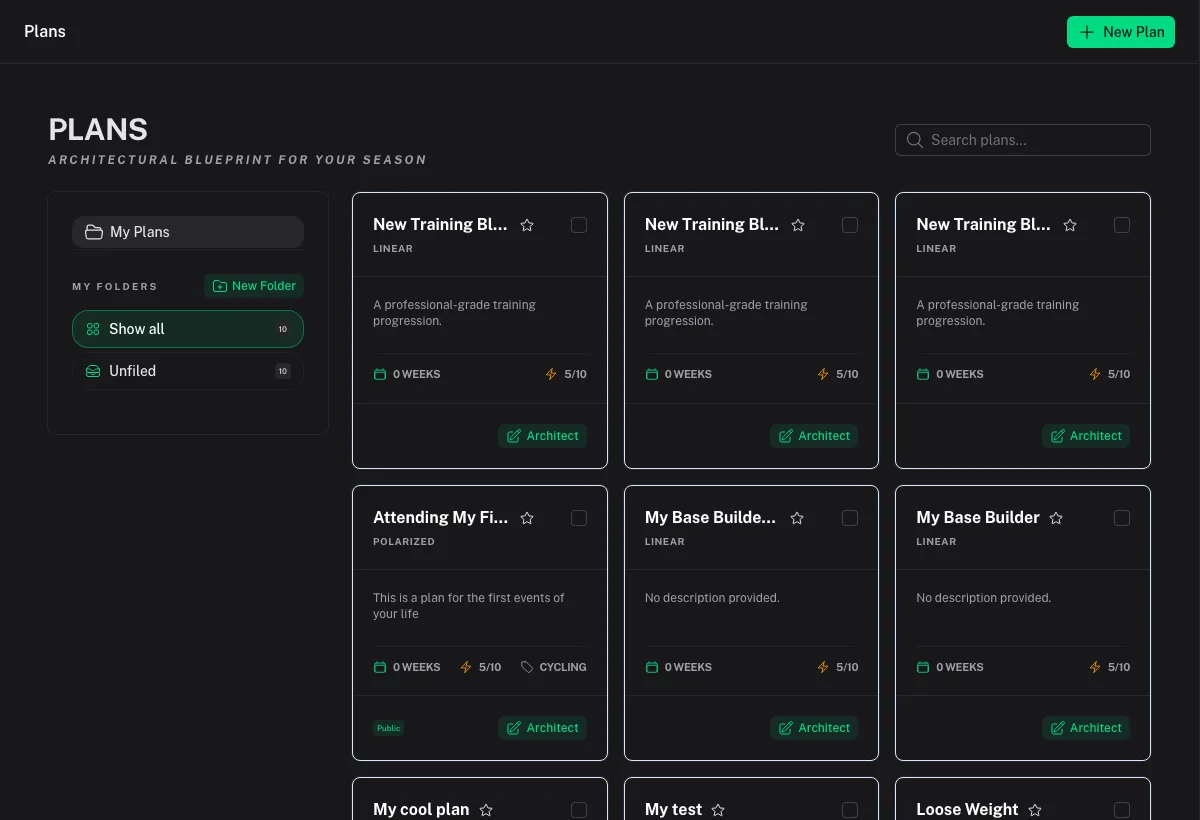
Apply a whole plan to an athlete
When the coaching Use Plan dialog is available:
- Open the plan from Library → Plans or from the calendar Plans drawer.
- Choose Use Plan (wording may vary).
- Select the target athlete, start date, and whether to replace incomplete future workouts from that date.
- Confirm and review the athlete calendar for the first week.
If only individual workouts are available from a blueprint, schedule them one at a time from Coaching → Calendar — that places sessions without activating the full blueprint lifecycle. See Coaching Calendar.
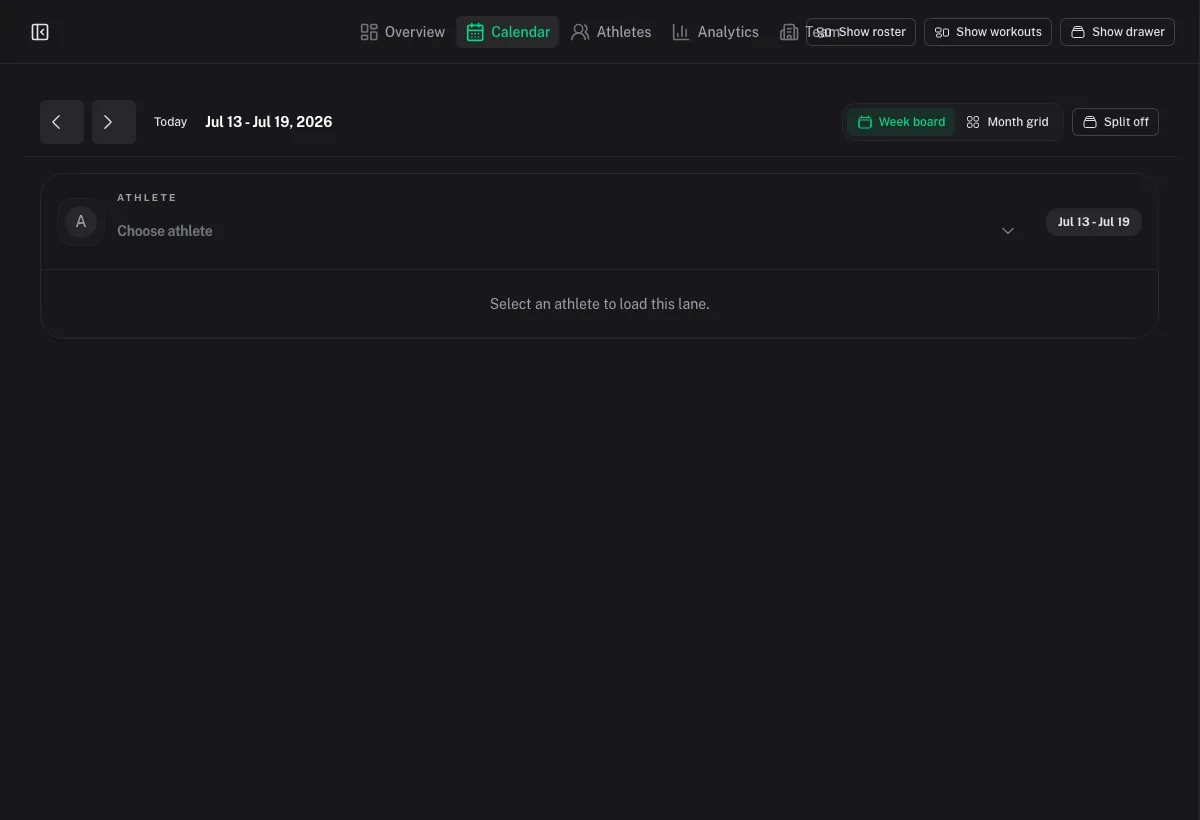
Schedule without applying the whole plan
From Coaching → Calendar:
- Open the Plans drawer.
- Browse coach, athlete, team, favorite, or public content.
- Schedule a single workout from the blueprint onto a date.
Use this for one-off sessions or when you do not want to replace the athlete's existing forward schedule.
Update a live schedule
After workouts are on the calendar:
- Move / copy / delete sessions on Coaching → Calendar.
- Edit the library blueprint in Plan Architect when you want future applications to change — editing the blueprint does not silently rewrite every athlete who already applied an older copy unless you re-apply or manually adjust.
- Prefer clear communication with the athlete before replacing incomplete future workouts.
Unshare or change visibility
- Open the plan → Share settings.
- Switch from Public/Team back to Private, or revoke team scope.
Athletes who already copied or applied content keep the dated workouts already on their calendar. Unsharing stops new discovery; it is not a remote wipe of athlete calendars.
Public catalog notes
Public plans appear in the shared catalog for discovery. Publishing is not the same as charging for a plan inside Coach Watts—commerce, if any, happens through your own process or external CTA on your Start page.
Ownership
Coach and athlete libraries are separate. Access to an athlete calendar does not transfer ownership of their templates. Use the source selector (Coach / Athlete / Both) when coaching context is active. See Coach Library & Sharing.